Search
This guide will help developers in how to execute a basic search with the Storefront API for Amazon. Notice that Storefront has to be setup properly as described in the Setup guide. You must also be able to get yourself an access token as described in the Authorization guide.
Prerequisites
To follow this tutorial, you will need:
- A Storefront installation with a properly configured connection to Amazon Business as described in the Setup guide.
- A process of creating access tokens as described in the Authorization guide.
How Search works
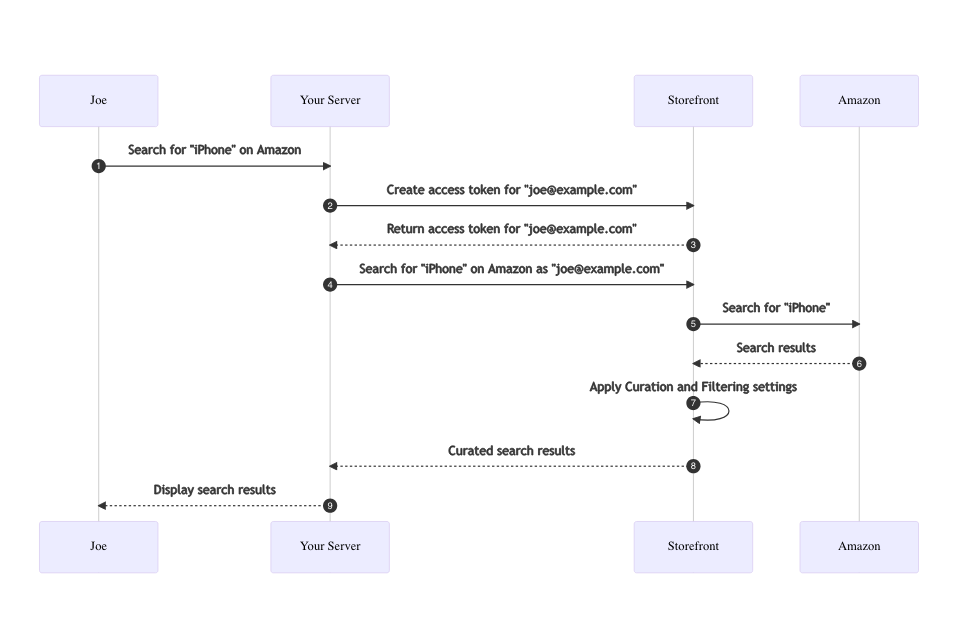
The following diagram illustrates the general flow of a search request.
- Joe initiates a search for e.g. "iPhone" in your eprocurement suite. The search request is sent to your server.
- Your server checks if there is already a valid access token for Joe, or creates one with the process outlined below.
- Your server creates a search request and sign it with the access token previously created, then send it to Storefront.
- Storefront receives the request, performs some additional mappings to prepare the request to Amazon.
- Amazon returns the search results to Storefront.
- Storefront will apply the Curation and Filtering settings on the search result on Amazon.
- Storefront returns the curated results to your server.
- Your server inspects the results and sends back rendered HTML to the browser of Joe.
Executing a search request
The following code executes a search for a "iPhone" on Amazon Business.
- cURL
- JavaScript
- C#
- Java
- Go
curl --request GET \
     --header 'authorization: YOUR_ACCESS_TOKEN' \
     --url 'https://YOUR_DOMAIN/api/v1/amazon/search?query=iphone'
var axios = require("axios").default;

var options = {
  method: 'GET',
  url: 'https://YOUR_DOMAIN/api/v1/amazon/search',
  headers: {
    'content-type': 'application/json',
    'authorization': 'bearer YOUR_ACCESS_TOKEN'
  },
  params: {
    query: 'iphone'
  }
};

axios.request(options).then(function (response) {
  console.log(response.data);
}).catch(function (error) {
  console.error(error);
});
var client = new RestClient("https://YOUR_DOMAIN/api/v1/amazon/search");
var request = new RestRequest(Method.GET);
request.AddHeader("content-type", "application/json");
request.AddHeader("authorization", "bearer YOUR_ACCESS_TOKEN");
request.AddParameter("query", "iphone");
IRestResponse response = client.Execute(request);
HttpResponse<String> response = Unirest.post("https://YOUR_DOMAIN/api/v1/amazon/search")
  .header("content-type", "application/json")
  .header("authorization", "bearer YOUR_ACCESS_TOKEN")
  .queryString("query", "iphone")
  .asString();
package main

import (
    "fmt"
    "strings"
    "net/http"
    "io"
)

func main() {
    // Configure your URL
    url := "https://YOUR_DOMAIN"

    // Query parameters
    v := url.Values{}
    v.Set("query", "iphone")

    // Prepare HTTP request
    req, err := http.NewRequest("GET", baseURL+"/api/v1/amazon/search?"+v.Encode(), http.NoBody)
    if err != nil {
        panic(err)
    }
    req.Header.Set("content-type", "application/json")
    req.Header.Set("authorization", "bearer "+YOUR_ACCESS_TOKEN)

    // Execute the request
    resp, err := http.DefaultClient.Do(req)
    if err != nil {
        panic(err)
    }
    defer resp.Body.Close()

    // The HTTP response body will return JSON accordingly
    body, err := io.ReadAll(req.Body)
    if err != nil {
        panic(err)
    }
    fmt.Println(resp)
    fmt.Println(string(body))
}
Parameters
| Parameter | Description |
|---|---|
query | Set this to the keyword(s) that the user has typed into the search box. |
page | A 1-based page index into the search results. |
pageSize | The number of results to return for the page. The minimum is 1, the maximum (and default) is 24. |
Additional parameters
The Search API has dozens of additional parameters that you can pass as a query parameter. However, these are dynamic and depend on the actual search context. E.g. different query parameters will only be allowed if you search in the Music department, and will not be available in the Electronics department. Those are not known upfront and can be build from the response returned by a previous search.
Example
| Parameter | In | Type | Required | Description |
|---|---|---|---|---|
| category | query | string | false | A category to limit results to |
| is_prime | query | string | false | A category to limit results to |
| price | query | string | false | Limit to a specific price range |
| availability | query | string | false | Filter for a products that are e.g. in stock only |
| lbr_brands_browse-bin | query | string | false | Filter for a specific brand |
| ... | query | string | false | Additional, dynamically generated filters |
Response
If everything goes well you will receive a successful HTTP response with status 200 OK with a payload containing the search results.
{
  "id": "amazon",
  "name": "Amazon Business",
  "count": {
    "value": 306,
    "relation": "eq"
  },
  "data": [
    {
      "id": "s_CgpCMDdaUEtONllSEAIaAlVTIgVlbi1VUyjChT0",
      "provider": "amazon",
      "sku": "B07ZPKN6YR",
      "name": "Apple iPhone 11, 64GB, Black - Unlocked (Renewed)",
      "vendor": "Chubbiestech",
      "price": {
        "amount": 364,
        "currency": "USD",
        "formatted": "$ 364.00"
      },
      "preview": {
        "url": "https://m.media-amazon.com/images/I/31PpUfTCiFL._SY500_.jpg",
        "width": 366,
        "height": 500,
        "altText": "Apple iPhone 11, 64GB, Black - Unlocked (Renewed)"
      },
      "delivery": "Delivery Friday, June 3",
      "availability": "In Stock.",
      "priceTaxLabel": "incl. taxes"
    },
    ...
  ],
  "facets": [
    {
      "id": "category",
      "name": "Department",
      "values": [
        {
          "id": "search-alias#mobile",
          "name": "Cell Phones \u0026 Accessories"
        },
        {
          "id": "search-alias#electronics",
          "name": "Electronics"
        },
        {
          "id": "search-alias#garden",
          "name": "Home \u0026 Kitchen"
        },
        {
          "id": "search-alias#sporting",
          "name": "Sports \u0026 Outdoors"
        },
        {
          "id": "search-alias#office-products",
          "name": "Office Products"
        },
        {
          "id": "search-alias#fashion",
          "name": "Clothing, Shoes \u0026 Jewelry"
        }
      ]
    },
    {
      "id": "is_prime",
      "name": "Delivery Option",
      "values": [
        {
          "id": "1-",
          "name": "FREE Shipping"
        }
      ]
    },
    ...
  ]
}
The above is an excerpt of a response to the Search API.
On the top-level, you will get an id that is always "amazon" if you search with the Storefront API for Amazon Business.
The name is a localized label for the section that provided the search results, i.e. "Amazon Business".
The count structure will indicate the number of results returned from Amazon as well as if its an exact number ("relation": "eq")
or rather a lower bound ("relation": "gte").
The data array will contain the search results of the current page. Notice that the Search API will only return a limited amount of
details for a result. To get all details available for a product, use the Product Details API.
As a consequence of returning only a subset of the product details, you may not be able to add a product to the shopping cart directly. However, this is intended and a common concept in marketplaces, and Amazon Business is not an exception: By design, marketplaces offer products from multiple merchants. So it is not clear on the result-level which merchant you want to purchase the product from—only on the product detail level, you will get all offers and have to decide which offer you want to accept.
In other words: Always guide the user to a product detail page.
Finally, you might get back a facets array that allows you to further drill down into the search results. Notice that setting facets as additional filters might actually lead to more results, not less.
Overview
| Status | Meaning | Description |
|---|---|---|
| 200 | OK | A list of search results. |
| 400 | Bad Request | The server understood your request but is unable to complete it, e.g. because a required parameter is missing. |
| 401 | Unauthorized | You sent invalid or expired credentials. |
| 429 | Too Many Requests | The server received too many requests in a given amount of time; you should throttle down and retry later. |
| 500 | Internal Server Error | Something went wrong on our side. |
Response schema
Status Code 200
| Name | Type | Required | Description |
|---|---|---|---|
| id | string | true | Always amazon for results from Amazon Business |
| name | string | true | A localized text for the term Amazon Business |
| count | object | true | Describes an exact or lower bound for the number of matching results |
| data | array | false | An array of individual search results |
| facets | array | false | An array of facets to further filter the search results |
Search count
| Name | Type | Required | Description |
|---|---|---|---|
| value | integer(int32) | true | The total number of results. Notice that relation indicates whether this is an exact number or a lower bound. |
| relation | string | false | Indicates whether the count is exact (eq) or a lower bound (gte). Default is eq. |
Search Result
| Name | Type | Required | Description |
|---|---|---|---|
| id | string | true | An opaque, unique identifier for the individual search result; use it to retrieve product details or initiate the punchout process |
| provider | string | true | Always amazon for the Storefront API for Amazon Business |
| name | string | true | Name of the product |
| vendor | string | false | Name of the vendor |
| price | iobject(Money) | true | Price of the product per unit. This is typically the price of the buy box winner. Some prices come with taxes inluded, which is indicated by the priceTaxLabel. |
| preview | object(Image) | false | Preview image |
| quantityDiscountsAvailable | boolean | false | Indicates whether quantity discounts are available for this product |
| delivery | string | false | Describes delivery details of the product in textual form, e.g. FREE delivery on Friday, August 13th |
| priceTaxLabel | string | false | Describes tax-related details of the price in textual form, e.g. excl. taxes |
| preferred | boolean | false | Indicates whether this is a preferred product according to the buying guidance settings of the purchasing organization |
| blocked | boolean | false | Indicates whether this is blocked according to the buying guidance settings of the purchasing organization. These products should be disabled from adding to the shopping cart. |
| starRating | number(float64) | false | Rating of the product on Amazon in the form of a numerical value between 0.0 (bad) and 5.0 (good) |
Errors
In case of an error, you can use the HTTP status code and the response body to find out what went wrong.
| HTTP Status Code | Description |
|---|---|
que400 Bad Requestry | The server understood your request but is unable to complete it, e.g. because a required parameter is missing. |
401 Unauthorized | You sent invalid or expired credentials. |
500 Internal Server Error | Something went wrong on our side. |
Example:
{
    "error": {
      "code": 401,
      "message": "Invalid or expired request",
      "details": [
        "Please ensure that access token is valid."
      ]
    }
}
Facets
The facets returned as part of the search results are critical for building your user interface. They are the means that allow your users to dig deeply into the products available on Amazon Business. You might get back dozens of facets, and facets are constantly evolving on Amazon Business. E.g. you might get a facet that is only available during the Christmas season.
Search Facets
| Name | Type | Required | Description |
|---|---|---|---|
| id | string | true | A unique, opaque string to identify the facet; it can be used to build subsequent search requests |
| name | string | true | A localized text that describes the facet, e.g. "Brand" or "Price range" |
| parents | array(SearchFacetValue) | false | Certain facets are hierarchical, e.g. categories, and return the parent categories |
| values | array(SearchFacetValue) | true | Array of the different values of the facet. E.g. for "Price range" the values could be "Up to 5$" and "5-10$" |
Search Facet Value
| Name | Type | Required | Description |
|---|---|---|---|
| id | string | true | A unique, opaque string to identify the facet value; it can be used to build subsequent search requests |
| name | string | true | A localized text that describes the facet value |
| selected | boolean | false | Indicates whether this facet value is currently selected |
Money
| Name | Type | Required | Description |
|---|---|---|---|
| amount | number | true | Amount of the price. Minimum is 0.0 |
| currency | string | true | Currency code as of ISO 3166 |
| formatted | string | false | A localized, textual form of the monetary value |
Image
| Name | Type | Required | Description |
|---|---|---|---|
| url | string | true | URL to the image |
| width | integer(int32) | false | Width of the image in pixels |
| height | integer(int32) | false | Height of the image in pixels |
| altText | string | false | Alternative text to further describe the image |
| kind | string | false | Describes the size/purpose of the image: thumbnail, small, medium, or large |
But don't worry. Although the actual facets are unknown to you as an developer, building a search request from the response is actually straightforward.
Let's look at the facets returned in a search response:
...
"facets": [
  {
    "id": "category",
    "name": "Department",
    "values": [
      {
        "id": "search-alias#mobile",
        "name": "Cell Phones \u0026 Accessories"
      },
      {
        "id": "search-alias#electronics",
        "name": "Electronics"
      },
      {
        "id": "search-alias#garden",
        "name": "Home \u0026 Kitchen"
      },
      {
        "id": "search-alias#sporting",
        "name": "Sports \u0026 Outdoors"
      },
      {
        "id": "search-alias#office-products",
        "name": "Office Products"
      }
    ]
  },
  {
    "id": "is_prime",
    "name": "Delivery Option",
    "values": [
      {
        "id": "1-",
        "name": "FREE Shipping"
      }
    ]
  }
],
...
With the example above, you can create e.g. a sidebar in the UI that shows the actual "Departments" and "Delivery Options" that Amazon returns as part of the response. So the UI might look like this:
**Department**

( ) Cell Phones & Accessories
( ) Electronics
( ) Home & Kitchen
( ) Sports & Outdoors
( ) Office Products

**Delivery Option**

( ) FREE Shipping
Now, if the user clicks on e.g. "Electronics",
you need to start a new search request and inject category=search-alias#electronics into the query string of your subsequent search request.
So you use the id from the "Department" facet as the query name (category),
and set the id from the selected facet value as the query value (search-alias#electronics): category=search-alias#electronics
Always ensure you properly encode the URL when using the Search API. E.g. you need to URL-encode the query string.
To add other filters, simply do the same for that facet, e.g. is_prime=1-.
To remove a filter, check if the facet's id is already selected and remove it from the query string instead of adding it.
Do not assume a fixed set of facets, ids, names, or values: They might change at any time!
Here's an example of searching for iphone in the "Electronics" department:
curl --request GET \
     --header 'authorization: YOUR_ACCESS_TOKEN' \
     --url 'https://YOUR_DOMAIN/api/v1/amazon/search?query=iphone&category=search-alias%23electronics'
{
  "id": "amazon",
  "name": "Amazon Business",
  "count": {
    "value": 2404,
    "relation": "eq"
  },
  "data": [
    ...
  ],
  "facets": [
    {
      "id": "category",
      "name": "Category",
      "parents": [
        {
          "id": "",
          "name": "Electronics",
          "selected": true
        }
      ],
      "values": [
        {
          "id": "search-alias#electronics,node#281407",
          "name": "Accessories \u0026 Supplies"
        },
        {
          "id": "search-alias#electronics,node#502394",
          "name": "Camera \u0026 Photo"
        },
        {
          "id": "search-alias#electronics,node#3248684011",
          "name": "Car \u0026 Vehicle Electronics"
        },
        ...
      ]
    },
    {
      "id": "price",
      "name": "Price",
      "values": [
        {
          "id": "1253503011",
          "name": "Under $25"
        },
        {
          "id": "1253504011",
          "name": "$25 to $50"
        },
        {
          "id": "1253505011",
          "name": "$50 to $100"
        },
        {
          "id": "1253506011",
          "name": "$100 to $200"
        },
        {
          "id": "1253507011",
          "name": "$200 \u0026 Above"
        }
      ]
    },
    {
      "id": "availability",
      "name": "Availability",
      "values": [
        {
          "id": "2661600011",
          "name": "In Stock Only"
        },
        {
          "id": "2661601011",
          "name": "Include Out of Stock"
        }
      ]
    },
    {
      "id": "delivery_day",
      "name": "Delivery Day",
      "values": [
        {
          "id": "8308920011",
          "name": "Get It Today"
        },
        {
          "id": "8308921011",
          "name": "Get It by Tomorrow"
        }
      ]
    },
    {
      "id": "review-rating",
      "name": "Avg. Customer Review",
      "values": [
        {
          "id": "1248879011",
          "name": "4 Stars \u0026 Up"
        },
        {
          "id": "1248880011",
          "name": "3 Stars \u0026 Up"
        },
        {
          "id": "1248881011",
          "name": "2 Stars \u0026 Up"
        },
        {
          "id": "1248882011",
          "name": "1 Star \u0026 Up"
        }
      ]
    },
    {
      "id": "is_prime",
      "name": "Delivery Option",
      "values": [
        {
          "id": "1249137011",
          "name": "Free Shipping by Amazon"
        }
      ]
    },
    {
      "id": "cpf_eligible",
      "name": "Climate Pledge Friendly",
      "values": [
        {
          "id": "21512497011",
          "name": "Climate Pledge Friendly"
        }
      ]
    },
    {
      "id": "lbr_brands_browse-bin",
      "name": "Brand",
      "values": [
        {
          "id": "SAMSUNG",
          "name": "SAMSUNG"
        },
        {
          "id": "Apple",
          "name": "Apple"
        },
        {
          "id": "LG",
          "name": "LG"
        },
        {
          "id": "Motorola",
          "name": "Motorola"
        },
        {
          "id": "Google",
          "name": "Google"
        },
        {
          "id": "Nokia",
          "name": "Nokia"
        },
        {
          "id": "HUAWEI",
          "name": "HUAWEI"
        }
      ]
    },
    {
      "id": "condition-type",
      "name": "Condition",
      "values": [
        {
          "id": "New",
          "name": "New"
        },
        {
          "id": "Used",
          "name": "Used"
        },
        {
          "id": "Certified Refurbished",
          "name": "Renewed"
        }
      ]
    }
  ]
}
Notice that the "category" facet is special in that it may return its parents. This allows you to create a UI that represents a hierarchical tree of categories.